Block distracting websites on Mac, automatically
Screen Time and the hosts file can block sites, but you have to set them up and undo them by hand. Cue does it for you the moment you put your headphones in.
The manual ways to block websites on a Mac
There are two built-in routes, and both work. Neither knows when you are actually trying to focus.
Screen Time. In System Settings, Screen Time has Content & Privacy restrictions. Under web content you can limit adult sites and add addresses to a "never allow" list. It is reliable and needs no extra software. The catch is that it is a standing rule: the sites stay blocked all day, or you open the settings and edit the list every time.
The hosts file. You can edit /etc/hosts in Terminal with admin rights and point a site at your own machine so it never loads. It is free and it works in every browser. It is also easy to forget. You have to undo the edit when you want the site back, and you may need to flush the DNS cache for it to take effect.
Both share the same weakness. Blocking is a chore you do before you start, and unblocking is a chore you do after. Most people skip the chore on the days they need it most.
How Cue blocks distracting sites automatically
Cue ties blocking to something you already do: putting your headphones in. When they go in, Cue turns on your Focus mode, blocks your distracting sites and starts a timer in the notch. When you take them out, the sites come back and it is break time. There is no list to toggle and nothing to remember.
If you are searching for a free website blocker for Mac, this is the idea behind Cue. It is also a way to get an automatic Focus mode on Mac without building your own automation. macOS has no public way to set a Focus mode, so Cue sets up its own shortcuts once. After that it switches Focus for you with no more prompts.
What gets blocked, and what comes back
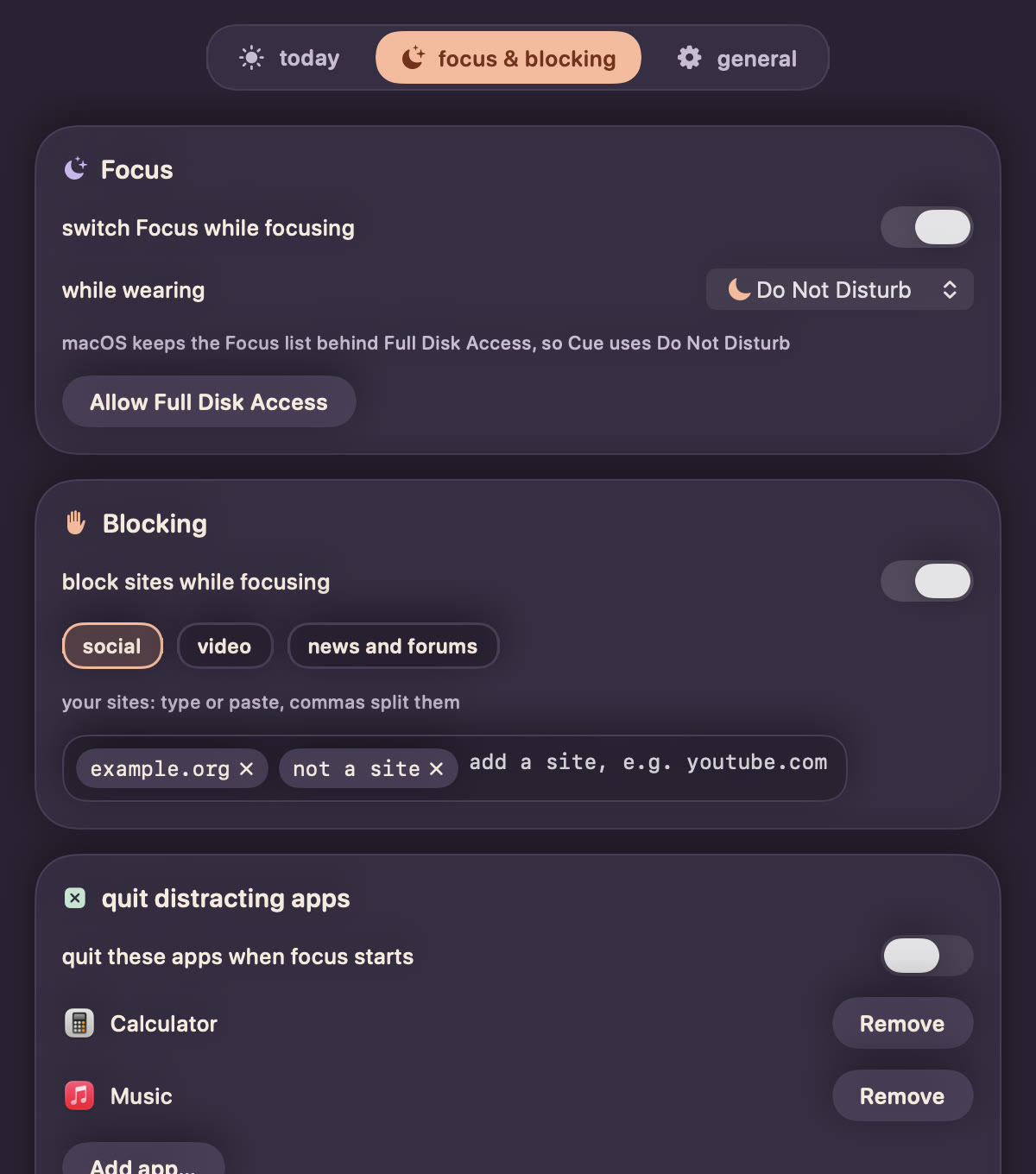
- Sites. Social, video and news lists are built in. You can add your own sites too: paste a comma-separated list and Cue splits it for you.
- Apps. Apps you list are asked to quit when focus starts, so a chat window does not pull you away.
- Breaks. Take your headphones out and, after a 10 second grace period in case you are only adjusting a bud, Focus turns off and your sites are reachable again. The break lasts 15 minutes by default, and you can set it from 5 to 60 in Settings.
- Your day. The Today tab shows your sessions against a goal, your streak and the last 7 days.
The notch shows the state at a glance: a small dot and a timer next to the camera. Hover it to open it. It is a quiet way to see that focus is on without a window in the way.
Setting it up
Cue is a free macOS app for macOS 14 or later, and the download is built for Apple Silicon. Any Bluetooth headphones work. AirPods Pro, Max, 3 and 4 are the most precise, because they report when they are in your ears.
Setup takes a minute. You enter your password once for the site-blocking helper, allow Motion, and turn Cue on under Accessibility in Privacy & Security. Cue is a free hobby app and is not notarized by Apple, so macOS asks you to confirm the first open. The install guide on the home page walks through every click.
Cue has no accounts and no analytics, and your settings and history stay on your Mac. It is free, with no ads.
Try Cue
Free for macOS 14 or later, built for Apple Silicon.